Connecting your Squarespace store
Connect Squarespace by creating an API key in Squarespace and adding it to Bookhead.
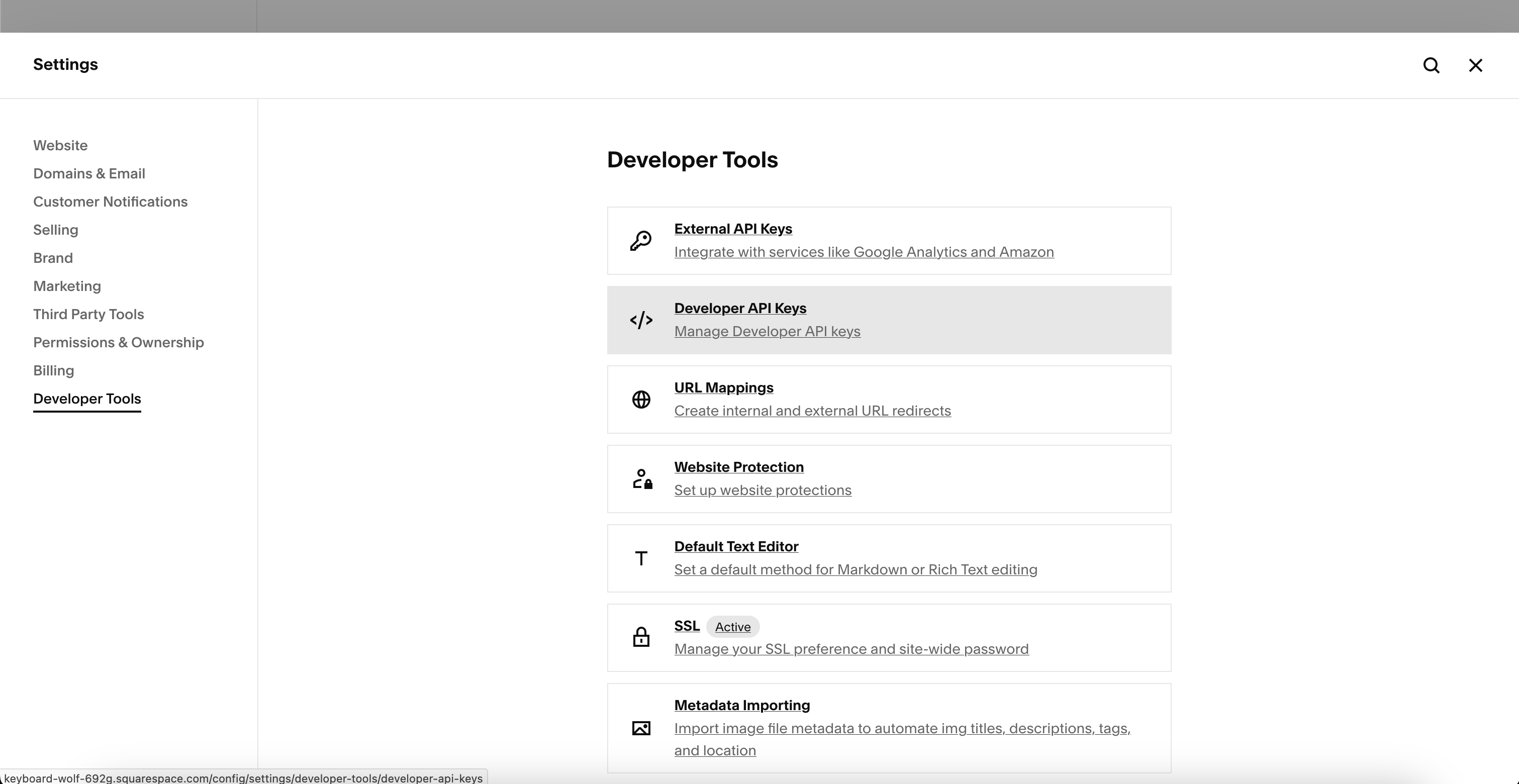
Step 1: Navigate to Developer API Keys in Squarespace
- Log into your Squarespace account
- Go to Settings → Developer Tools → Developer API Keys
Need help? Squarespace's API key documentation →
Step 2: Create and configure your API key in Squarespace
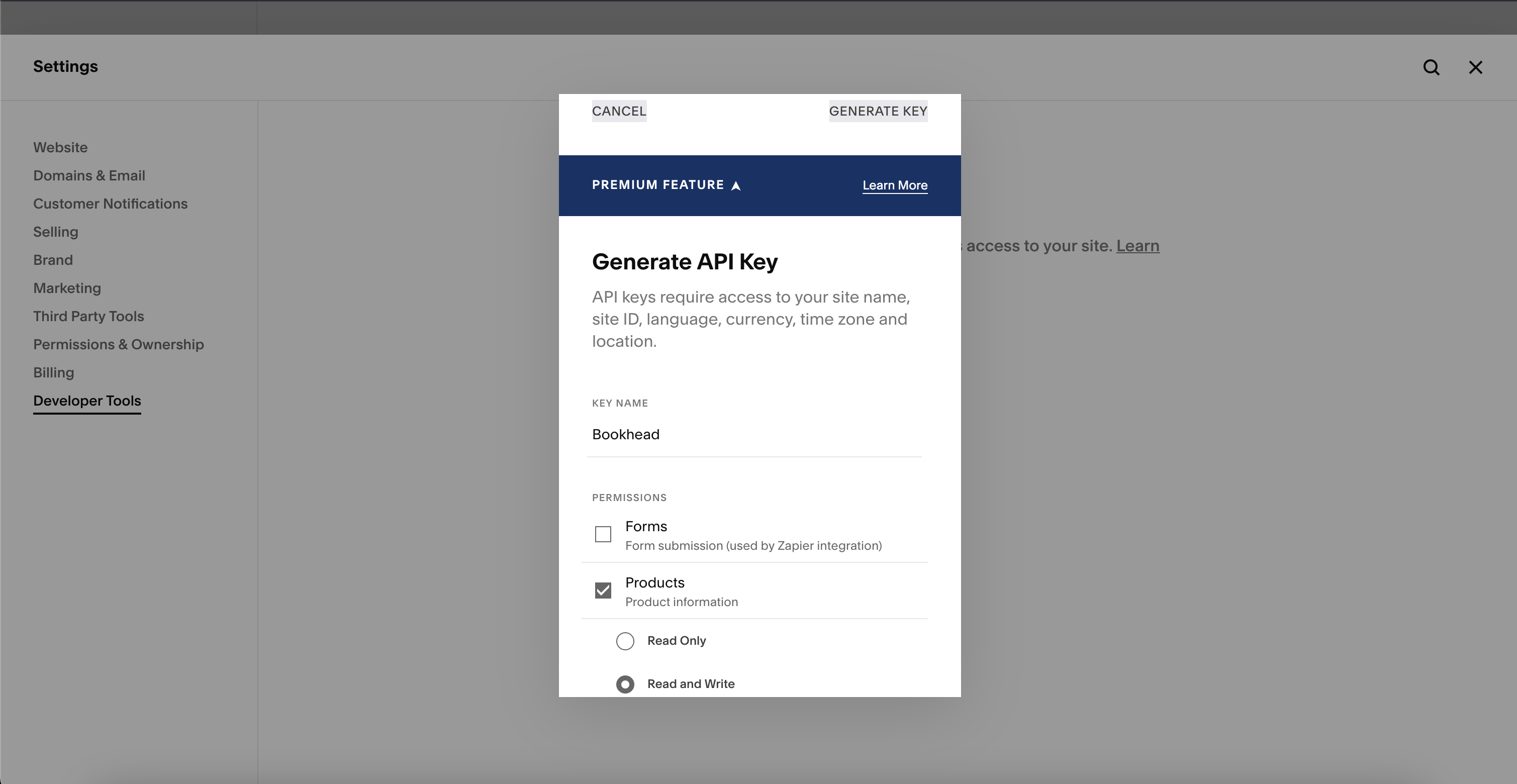
- Click Generate Key
- Name it "Bookhead"
- Under Permissions, select:
- Products (Read and Write)
- Inventory (Read and Write)
- Orders (Read and Write)
- Profiles (Read Only)
- Click Generate Key in the top right corner of the popup box
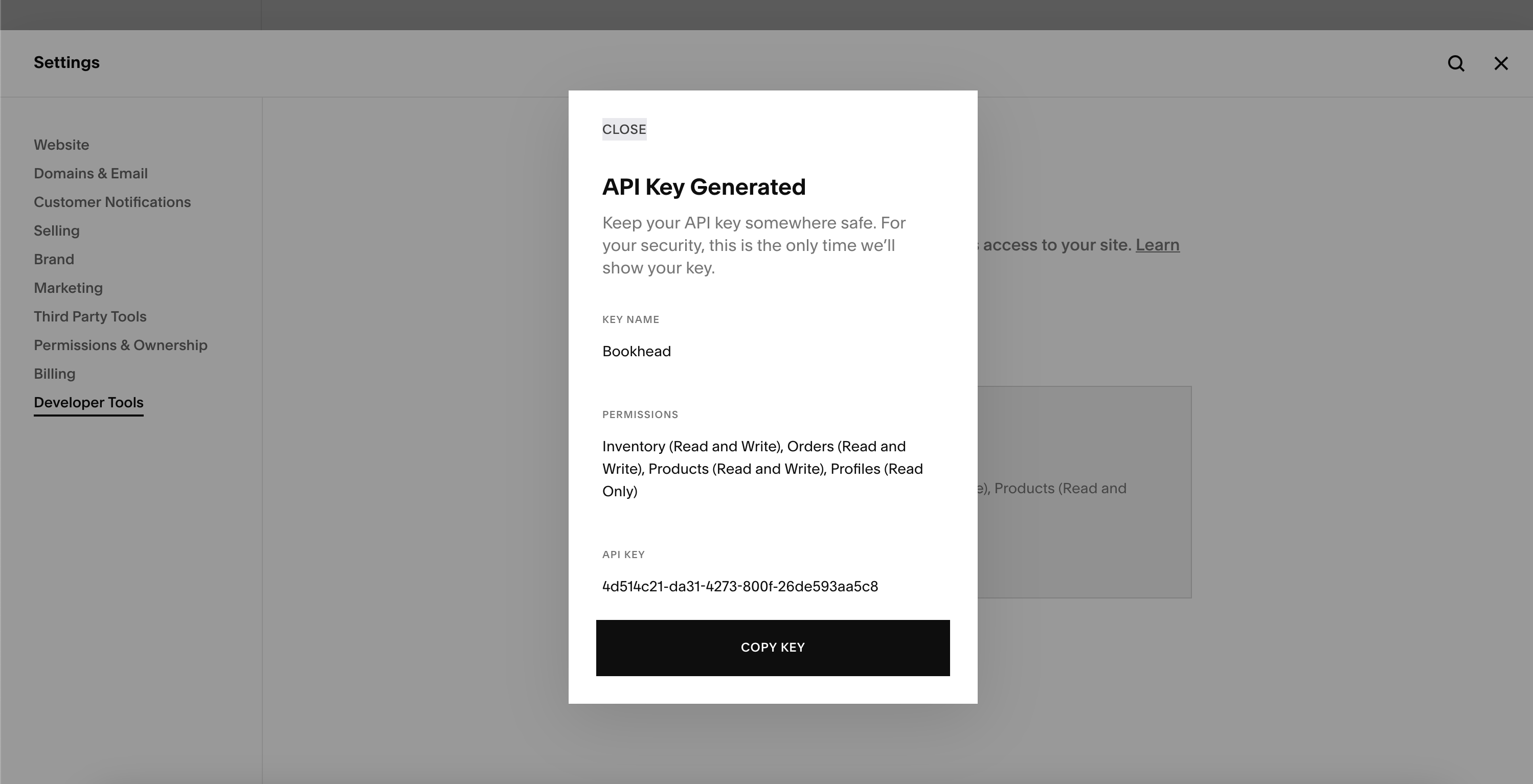
Step 3: Copy your API key
Important: Copy the key immediately and store it in a safe place, like a password. You'll only see it once! If you lose it, you'll need to generate a new one.
Need help? Squarespace's API key documentation →
Step 4: Add your API key to Bookhead
- Log into your Bookhead account:
https://<yourstore>.bookhead.net - Go to Channels → Create New Channel
- Select Squarespace
- Paste your API key into the "Access token" field
- Click Save
Step 5: Watch your books sync to Squarespace!
Your products will be queued up to sync to Squarespace, and will start syncing within the hour. This initial upload will include a lot of products, so this will take a long time!
Email [email protected] to let us know you've connected Squarespace. We'll verify everything works as expected.