Selling on channels
channels is a Bookhead Connect feature that allows you to sell your books on multiple sales channels. Currently, we support selling books on Squarespace, Shopify, eBay, and Biblio. This automatic inventory data syncing system keeps your bookstore's local store inventory up to date on all of your online sales channels.
Supported platforms
We support these e-commerce platforms and marketplaces:
- Squarespace
- Shopify
- [eBay]
- [Biblio]
Squarespace
Bookhead can list your books for sale on your Squarespace website. If you have a bookstore system connection, Bookhead automatically syncs your bookstore inventory with the product listings on your Squarespace website. Whenever a copy changes in your local inventory, Bookhead updates the Squarespace inventory within 15 minutes.
Requirements
- Squarespace plan with Inventory API access:
- Commerce Basic or higher (old plans)
- Core or higher (new plans)
- Compare Squarespace plans →
- Store Administrator access
Not sure which plan you have? When you try to create an API key in Step 1, Squarespace will let you know if you need to upgrade. Learn more about Squarespace plans →
How to Connect Your Squarespace Store
Step 1: Navigate to Developer API Keys in Squarespace
- Log into your Squarespace account
- Go to Settings → Developer Tools → Developer API Keys
Need help? Squarespace's API key documentation →
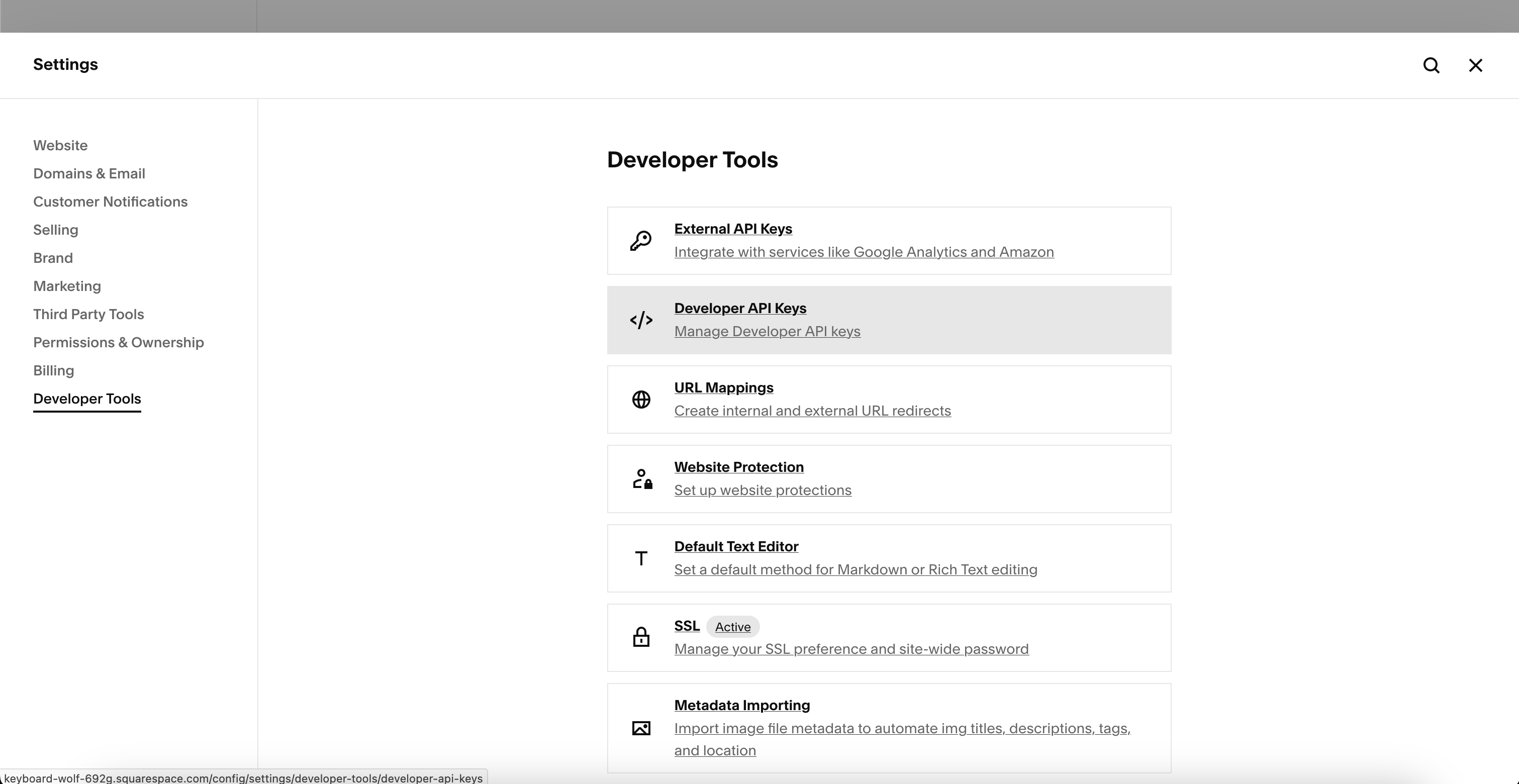
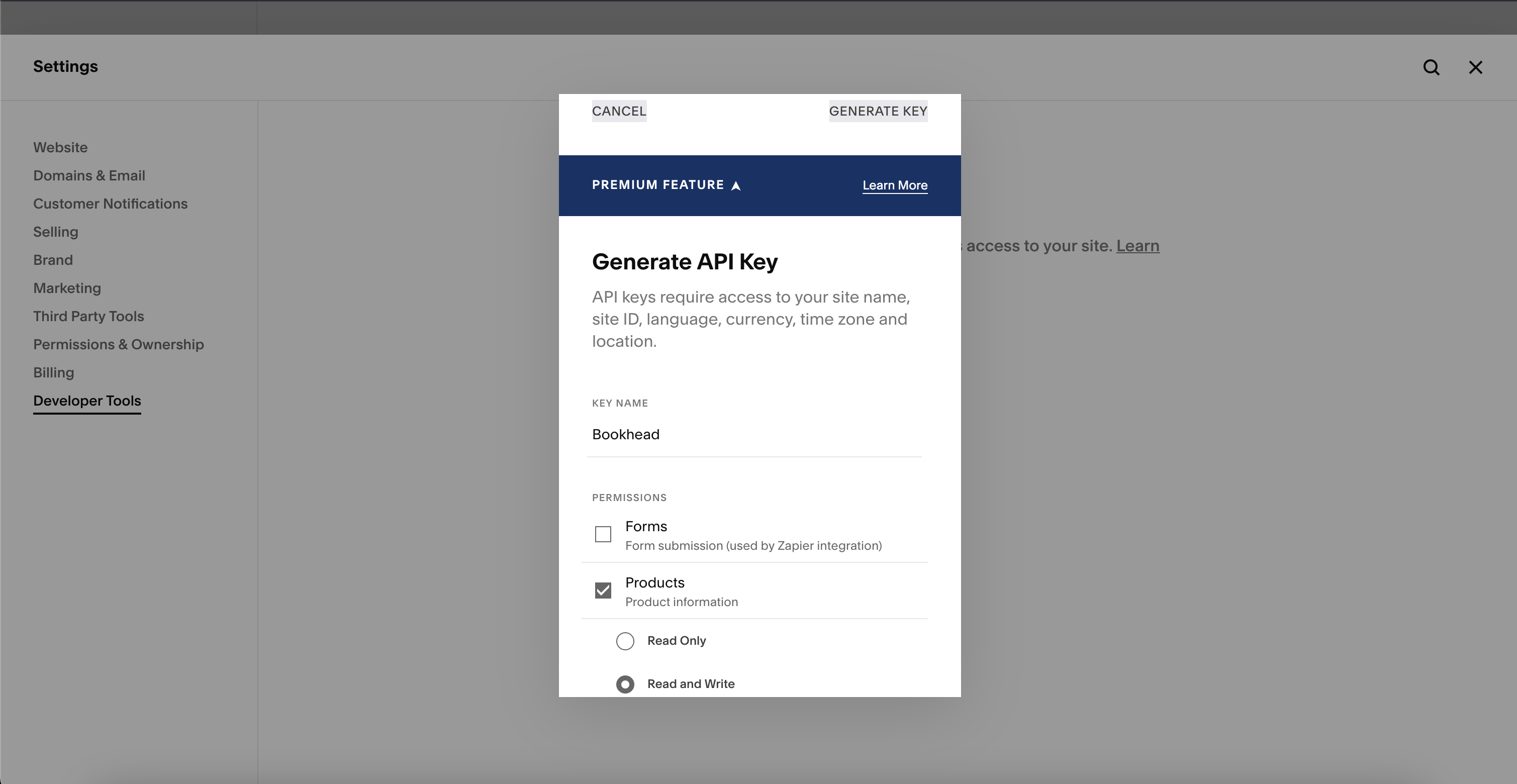
Step 2: Create and Configure Your API Key in Squarespace
- Click Generate Key
- Name it "Bookhead"
- Under Permissions, select:
- Products (Read and Write)
- Inventory (Read and Write)
- Orders (Read and Write)
- Profiles (Read Only)
- Click Generate Key in the top right corner of the popup box
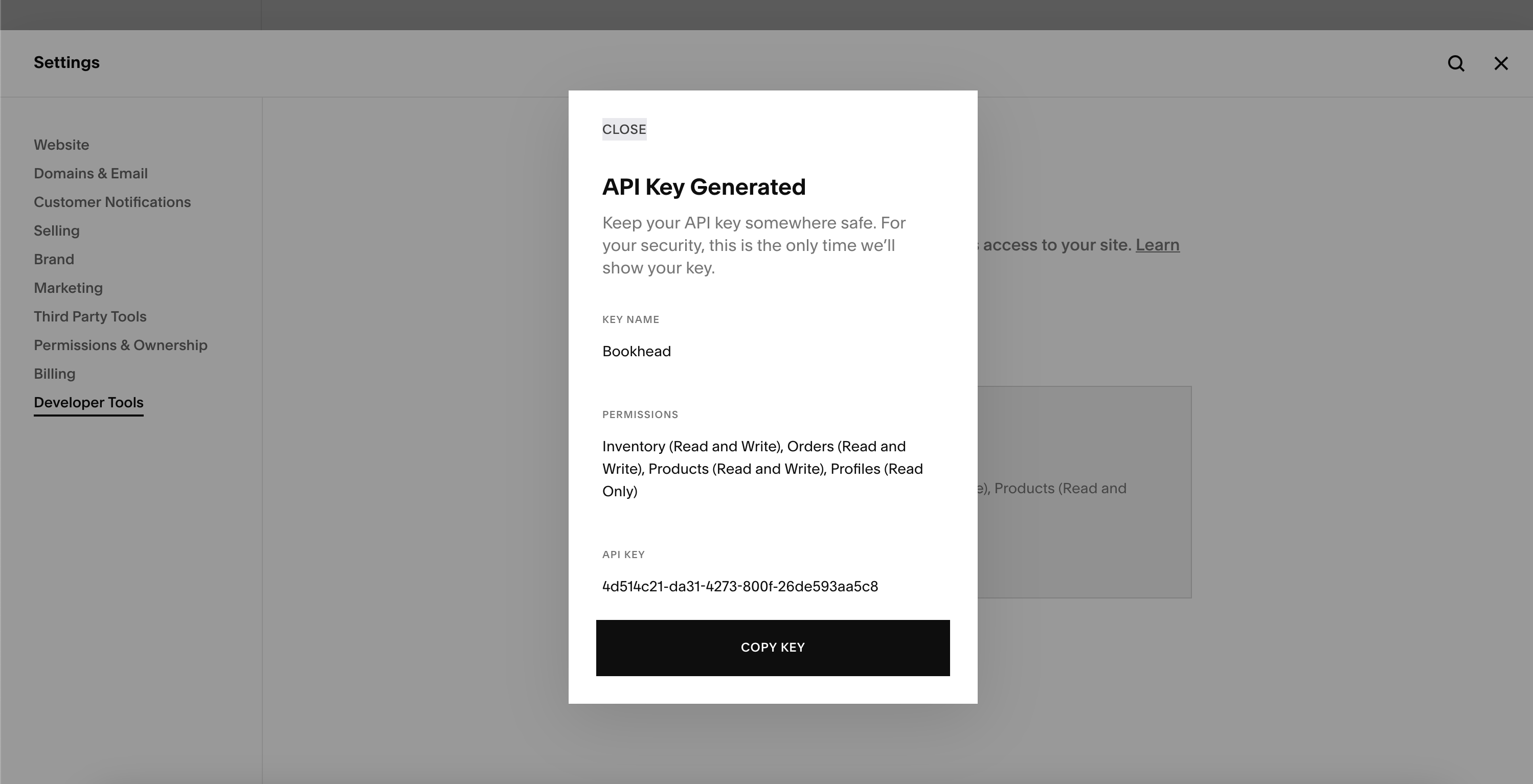
Step 3: Copy Your API Key
Important: Copy the key immediately and store it in a safe place, like a password. You'll only see it once! If you lose it, you'll need to generate a new one.
Need help? Squarespace's API key documentation →
Step 4: Add Your API Key to Bookhead
- Log into your Bookhead account:
https://<yourstore>.bookhead.net - Go to Channels → Create New Channel
- Select Squarespace
- Paste your API key into the "Access token" field
- Click Save
Step 5: Watch your books sync to Squarespace!
Your products will be queued up to sync to Squarespace, and will start syncing within the hour. This initial upload will include a lot of products, so this will take a long time!
Email [email protected] to let us know you've connected Squarespace. We'll verify everything works as expected.
Processing Orders from Squarespace
When a customer places an order on your Squarespace website:
- You'll receive the order notification from Squarespace (via email or your Squarespace dashboard)
- Process the order in your bookstore system just like you normally would for in-store sales
- Mark the order as fulfilled in Squarespace once you've shipped it
- Bookhead automatically updates your inventory when your bookstore system processes the sale
Important: Continue using your normal fulfillment workflow. Bookhead keeps your inventory in sync but doesn't handle order processing — that stays between you, your bookstore system, and Squarespace.
Shopify
Bookhead can sync your inventory to your Shopify store. The integration works the same way as Squarespace: automatic inventory sync from your bookstore to your Shopify products.
How your inventory is transformed to Shopify products
Each Edition becomes a Shopify product, and each Copy of that edition becomes a variant. The variant uses a Condition option (e.g., "Very Good", "Fine") so customers can see the book's condition. Copy-specific images (condition photos, signature pages, etc.) are assigned to the variant, while the edition cover image is shared at the product level.
Product (one per Edition)
- Title: Work title
- Vendor: Publisher name
- Product type: "Books"
- Product category: "Print Books" (Shopify standard taxonomy — enables tax rates, Google Shopping)
- Description: Synopsis, staff picks, edition details
- Tags: Controlled by tag settings (categories, publisher)
- Option: "Condition" (New, Fine, Very Good, Good, Fair, Poor)
└── Variant (one per Copy)
    - SKU: Copy SKU
    - Price: Copy price
    - Condition: Copy book condition
    - Images: Copy-specific photos (assigned to variant)
Tags are controlled by the channel's tag settings and only include what you enable — publisher name, display categories, and/or store categories. A bookhead tag is always included for identification.
Metafields for Liquid themes
Bookhead syncs rich book metadata to Shopify as metafields under the book_info namespace. Theme designers can use these in Liquid templates to build custom product pages without parsing the product description.
Access any metafield in Liquid with:
{{ product.metafields.book_info.authors }}
Data mapping: Bookhead to Shopify metafields
| Metafield key | Shopify type | Bookhead source | Description |
|---|---|---|---|
work_id | single_line_text_field | Work ID | Internal Work ID, used for "Other Editions" grouping |
work_title | single_line_text_field | Work → title | Canonical title of the work |
authors | single_line_text_field | Work → authors | Comma-separated author names |
subjects | single_line_text_field | Work → subjects | Comma-separated subject names |
edition_id | single_line_text_field | Edition → uuid | Internal Edition UUID |
edition_display | single_line_text_field | Edition (computed) | "Publisher • Year • Format" summary string |
isbn | single_line_text_field | Edition → isbn | ISBN |
publisher | single_line_text_field | Edition → publisher | Publisher name |
binding | single_line_text_field | Edition → binding | Format: Hardcover, Paperback, etc. |
pages | number_integer | Edition → pages | Page count |
publication_date | single_line_text_field | Edition → publication_date | Publication date as stored |
language | single_line_text_field | Edition → language | ISO language code (e.g., "en") |
synopsis | multi_line_text_field | Edition → synopsis | Book synopsis/description (max 5000 chars) |
dimensions | single_line_text_field | Edition → dimensions | Physical dimensions |
weight | single_line_text_field | Edition → weight | Weight |
msrp | single_line_text_field | Edition → msrp | Manufacturer's suggested retail price |
condition | single_line_text_field | Copy → book_condition | Book condition display name (New, Fine, Very Good, etc.) |
jacket_condition | single_line_text_field | Copy → jacket_condition | Dust jacket condition display name |
first_edition | boolean | Copy → first_edition | true if this is a first edition |
signed | boolean | Copy → signed | true if this copy is signed |
notes | multi_line_text_field | Copy → notes | Bookseller notes about this copy (max 5000 chars) |
collections | single_line_text_field | Copy → BookLists | Comma-separated BookList names this copy belongs to |
staff_pick | boolean | Work → reviews | true if the work has a staff pick review |
staff_pick_reviewer | single_line_text_field | Review → display_reviewer | First staff pick reviewer's name |
staff_pick_text | multi_line_text_field | Review → text | First staff pick review text (max 5000 chars) |
staff_picks_json | json | Work → reviews | All staff picks as JSON array (when multiple reviews exist) |
Example: using metafields in a Liquid theme
{% comment %} Show book details on the product page {% endcomment %}

<h1>{{ product.title }}</h1>
<p class="authors">by {{ product.metafields.book_info.authors }}</p>

{% if product.metafields.book_info.signed == true %}
  <span class="badge">Signed Copy</span>
{% endif %}

{% if product.metafields.book_info.first_edition == true %}
  <span class="badge">First Edition</span>
{% endif %}

<dl class="book-details">
  <dt>Condition</dt>
  <dd>{{ product.metafields.book_info.condition }}</dd>

  {% if product.metafields.book_info.jacket_condition %}
    <dt>Jacket</dt>
    <dd>{{ product.metafields.book_info.jacket_condition }}</dd>
  {% endif %}

  <dt>ISBN</dt>
  <dd>{{ product.metafields.book_info.isbn }}</dd>

  <dt>Publisher</dt>
  <dd>{{ product.metafields.book_info.publisher }}</dd>

  {% if product.metafields.book_info.binding %}
    <dt>Format</dt>
    <dd>{{ product.metafields.book_info.binding }}</dd>
  {% endif %}

  {% if product.metafields.book_info.pages %}
    <dt>Pages</dt>
    <dd>{{ product.metafields.book_info.pages }}</dd>
  {% endif %}

  {% if product.metafields.book_info.publication_date %}
    <dt>Published</dt>
    <dd>{{ product.metafields.book_info.publication_date }}</dd>
  {% endif %}
</dl>

{% if product.metafields.book_info.synopsis %}
  <div class="synopsis">
    {{ product.metafields.book_info.synopsis }}
  </div>
{% endif %}

{% if product.metafields.book_info.notes %}
  <div class="bookseller-notes">
    <h3>Bookseller's Notes</h3>
    {{ product.metafields.book_info.notes }}
  </div>
{% endif %}

{% if product.metafields.book_info.staff_pick %}
  <div class="staff-pick">
    <h3>Staff Pick</h3>
    <blockquote>
      "{{ product.metafields.book_info.staff_pick_text }}"
      <cite>— {{ product.metafields.book_info.staff_pick_reviewer }}</cite>
    </blockquote>
  </div>
{% endif %}
Theme App Extension: drag-and-drop blocks
The Bookhead app includes a Theme App Extension with ready-to-use blocks that merchants can add to any product page via the Shopify theme editor — no code required.
To add blocks: go to Online Store → Themes → Customize, navigate to a product page, and click Add block. Bookhead blocks appear under the Apps section.
Available blocks
| Block | Description | Key settings |
|---|---|---|
| Book Title | Work title as a heading | Heading level (H1–H3), font size, weight, color |
| Book Author | Author names with prefix | Prefix text ("by "), font size, color |
| Book Edition | Publisher, year, format summary | Font size, color |
| Book ISBN | ISBN with label | Label text, font size, color |
| Book Condition | Book and jacket condition | Show/hide jacket, label text |
| Book Description | Synopsis with optional heading | Heading text, font size |
| Book Badges | Staff Pick / Signed / First Edition pills | Label text, colors per badge type |
| Staff Pick Quote | Blockquote with reviewer attribution | Accent color, background, label text |
| Bookseller Notes | Bookseller's notes with heading | Italic/normal style, heading text |
| Book Info | All-in-one card with everything above | Toggle each section on/off |
Each block is independently placeable and fully customizable (colors, font sizes, spacing, labels). Place them anywhere in your product page layout — put the title at the top, badges under the price, staff pick quote in the sidebar, etc.
Blocks only render when the product has the corresponding metafield data from Bookhead. If a product doesn't have a staff pick review, the Staff Pick blocks simply won't appear.
Transforming your inventory data so it works on different channels
Bookhead stores your inventory securely in our database. We format this data into what is known as a "data model." Similarly, each channel has its own unique, internal data model. You can read a deeper explanation about our data model here, but importantly for this documentation about the channels feature, your inventory data is stored in Bookhead's database like this:
Work (Canonical author(s) and title)
└── Edition (ISBN, publisher, published year, contributors et)
    └── Copy (condition, price, quantity, cost, etc)
Each channel has a different way of transforming this Bookhead data model into the channel's unique data model. The details about each implementation are included in the specific channel sections below.
How your inventory is transformed to Squarespace products
With the Bookhead data model mentioned above in mind, we transform your Bookhead inventory to Squarespace's unique data model where each Edition becomes a product on Squarespace, and each Copy becomes a variant of the product:
Product (Edition level)
- Title: "{Work Title} ({Edition Details})"
- Description: Edition metadata (ISBN, publisher, etc.)
- Tags: Used for work/edition grouping
└── Variants (Copy level)
    - Attribute: Condition
    - Price and quantity per variant
Managing product categories
Bookhead helps you organize your products into categories for your online store. Your bookstore system uses category codes (like "FM" for Fiction-Mystery), and Bookhead lets you map these to customer-friendly display categories (like "Fiction" or "Mystery"). This works for both Squarespace and Shopify.
How it works:
- Display categories are the broad groupings customers see on your website (e.g., "Fiction", "History", "Children's Books")
- Store categories are the codes from your bookstore system
- You map store categories to display categories in Bookhead
- When you export to Squarespace, products get tagged with both the display category and the store category name
Setting up categories in Bookhead
Step 1: Create display categories
- Go to Categories in the staff menu
- Click Create category
- Enter a name like "Fiction" or "Children's Books"
- Repeat for each category you want on your website
Step 2: Map your store categories
- Go to Categories → Mappings
- You'll see all your bookstore category codes
- For each code, select a display category from the dropdown
- The mapping saves automatically
Step 3: (Optional) Edit category names
Your bookstore category names might look ugly (like "FICTION-MYSTERY/DETECTIVE"). You can give them friendlier names:
- In the mappings view, click edit next to any category name
- Enter a friendlier name like "Mystery & Detective"
- Press Enter or click save
This custom name will be used as a tag on your Squarespace products.
Importing categories to Squarespace
Squarespace doesn't allow setting categories via API, so you'll need to import them via CSV. Here's how:
Step 1: Create categories in Squarespace first
Before importing, you need to create the category structure in Squarespace:
- In Squarespace, go to your store and open any product
- Scroll down to Categories
- Click Add Category and create each display category (e.g., "Fiction", "History")
- These must match exactly what you created in Bookhead
Squarespace's guide to product categories →
Step 2: Export from Bookhead
- Go to Channels → your Squarespace channel → Products
- Click Export CSV
- Save the file
Step 3: Import to Squarespace
- In Squarespace, go to Commerce → Inventory → Products
- Click Import (or the three dots menu → Import)
- Select your CSV file
- Squarespace will match products by SKU and update their categories
Important: The import updates existing products - it won't create duplicates. Products are matched by their SKU (ISBN).